SAML 2.0 SSO
Set up SAML 2.0 SSO for your cside Enterprise organization with any SAML identity provider, from registering cside in your IdP to configuring, testing, and troubleshooting sign-in.
cside lets you connect any SAML 2.0 identity provider (IdP) and use it to authenticate users into your cside organization. One generic configuration covers every SAML-compliant provider, so the steps are the same whether you use Okta, Microsoft Entra ID, OneLogin, JumpCloud, Ping, Keycloak, or an in-house IdP.
When you enable SAML SSO, anyone with your company email domain will be forwarded to authenticate with your IdP. This means you can use your IdP to scope who can access cside, and when you allow someone, they will automatically be added to your cside organization with no permissions.
SAML 2.0 SSO is available to customers on the cside Enterprise plan and is currently enabled per organization by cside. Please contact us or reach out to your cside representative to get it enabled for your organization. Until it is enabled, SAML 2.0 does not appear in the provider list.
Requirements:
- cside Enterprise plan
- Organization Admin role in cside
- SAML 2.0 SSO enabled for your organization by cside
- An already setup cside organization - the initial admin (you) will be the first user, and will be converted to SSO upon migration
- Admin access to a SAML 2.0 identity provider that can sign assertions and publish its metadata
If you prefer OIDC, see the Okta, Duo, or Microsoft Entra ID guides instead. An organization can hold one OIDC and one SAML configuration at the same time, as long as each email domain is claimed by only one of them.
Navigating to SSO settings
You can open your organization settings directly, or navigate there manually:
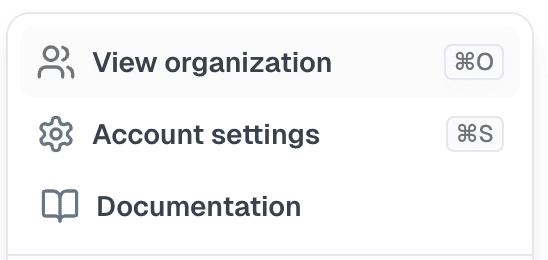
- Click on your account at the bottom left corner of the dashboard
- Select View organization
- Select Settings
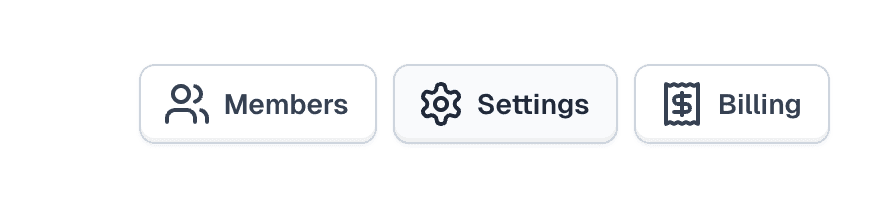
- Navigate to the SSO tab
- Click Select Provider (or Change Provider if you already have SSO configured) and select SAML 2.0
Add cside to your identity provider
The top of the SAML 2.0 section shows the two values your IdP needs. Copy them from the dashboard into the SAML application you create in your IdP:
| Value shown in cside | Where it goes in your IdP | Current value |
|---|---|---|
| Assertion Consumer Service (ACS) URL | ACS URL, Reply URL, or Single sign-on URL | https://gql.cside.com/v1/auth/saml/acs |
| Service provider entity ID (Audience) | Entity ID, Audience URI, or Identifier | https://cside.dev/saml/sp |
If your IdP prefers to import a service provider metadata document instead,
point it at https://gql.cside.com/v1/auth/saml/metadata
Then configure the application as follows. The exact field names differ per IdP, but every SAML 2.0 provider exposes these settings:
- Name ID: Set the format to
emailAddress(urn:oasis:names:tc:SAML:1.1:nameid-format:emailAddress) and map it to the user’s primary email address. cside uses this value to identify the user. - Attributes (optional): Add a display name attribute. cside recognizes
displayName,name,urn:oid:2.16.840.1.113730.3.1.241,urn:oid:2.5.4.3, and thehttp://schemas.xmlsoap.org/ws/2005/05/identity/claims/nameclaim. Without one, the user’s email address is used as their name. - Signing: Sign the assertion. Signing the whole response as well is fine, but an unsigned assertion inside a signed response is rejected. Use SHA-256.
- Encryption: Leave assertion encryption off. cside does not publish an encryption certificate, so encrypted assertions cannot be read.
- Signed requests: Do not require signed authentication requests. cside sends unsigned SAML requests.
- Binding: Your IdP’s single sign-on endpoint must support the HTTP-Redirect binding. cside sends the user there and receives the response at the ACS URL over HTTP-POST.
- Assignments: Assign the users or groups who should be able to access cside. Think carefully about this: anyone your IdP lets through is added to your organization.
If the Name ID cannot be an email address in your IdP, cside falls back to an
email attribute named email, mail, emailAddress,
urn:oid:0.9.2342.19200300.100.1.3, or the
http://schemas.xmlsoap.org/ws/2005/05/identity/claims/emailaddress claim.
Obtain required details
You’ll need your IdP’s SAML metadata. Every IdP offers it in one of two forms:
- Metadata URL: A public
https://link to the metadata XML (preferred) - Metadata XML: A downloadable metadata document
cside reads three things from the metadata: the IdP entity ID, the HTTP-Redirect single sign-on URL, and the signing certificate(s). You do not enter those by hand.
When your IdP rotates its signing certificate, a configuration built from a metadata URL can be refreshed with one click in cside. A configuration built from pasted XML needs the updated metadata pasted again.
Configure SSO in cside
- Go to the cside dashboard and open the SAML 2.0 section as described in Navigating to SSO settings.
- Fill in the required fields:
- Email domain: Your company’s email domain (e.g.,
example.com). Separate several domains with commas. A domain can only be claimed by one SSO configuration, across all cside organizations. - Metadata URL or Paste metadata XML: Pick the source that matches what your IdP gave you, then paste the URL into Identity provider metadata URL or the document into Identity provider metadata XML.
- Email domain: Your company’s email domain (e.g.,
- Click Save SAML configuration.
cside fetches or parses the metadata, checks it, and stores the configuration.
The metadata URL must use https://, be publicly reachable, return the
document directly without redirects, and be under 512 KB.
Once saved, the section shows the Identity provider entity ID, the Sign-on URL, and the number of Active signing certificates, along with two extra buttons:
- Refresh certificates: Re-reads the metadata URL and replaces the stored signing certificates. Only shown for configurations built from a metadata URL.
- Remove SAML: Deletes the configuration. Users on the configured domains go back to password sign-in.
Testing your configuration
There is no separate verification popup for SAML: saving the configuration enables it right away. Test it before you tell your team:
- Opening a new incognito/private browser window
- Navigating to dash.cside.com
- Entering an email address with your configured domain
- You should be redirected to your identity provider for authentication, and land back in the cside dashboard signed in
Starting sign-in from your IdP’s application tile also works. cside does not accept the unsolicited assertion directly. It redirects the user through a cside-initiated request to the same IdP, which usually completes without the user noticing.
Rotating signing certificates
cside accepts every signing certificate listed in your metadata, so you can publish the new certificate alongside the old one, switch your IdP over, and retire the old one without an outage:
- Metadata URL: Click Refresh certificates in the SAML 2.0 section after each change in your IdP.
- Pasted XML: Download the updated metadata, paste it into Identity provider metadata XML, and click Save SAML configuration.
Troubleshooting
Errors when saving
| Message | What it means |
|---|---|
| SAML SSO is not enabled for this organization. | cside has not enabled SAML 2.0 for your organization yet. Contact your cside representative. |
| The email domain ”…” is already used by an OIDC integration. | The domain is claimed by another SSO configuration, in your organization or another one. Remove it there first. The same applies when the message names a SAML integration. |
| This identity provider is already configured by another organization. | The entity ID in the metadata belongs to an IdP another cside organization already uses. Check that you pasted your own metadata. |
| This metadata has no entityID. | The document is not a complete IdP metadata file. Copy the whole EntityDescriptor. |
| This metadata has no HTTP-Redirect single sign-on URL. | Your IdP only advertises an HTTP-POST endpoint. Enable the HTTP-Redirect binding for the application. |
| This metadata has no signing certificate. | The metadata lacks a signing KeyDescriptor. Enable assertion signing and download the metadata again. |
| The single sign-on URL must use https. | Your IdP’s sign-on endpoint is served over plain HTTP. |
| The metadata URL redirects. | Point the field at the final metadata document, not at a redirecting link. |
| The metadata URL returned 404. | The link is wrong or the metadata requires authentication. Any status other than 200 is reported this way. |
| Could not reach the metadata URL. / The metadata URL timed out. | cside’s servers cannot reach the URL within 10 seconds. Check that it is public. |
| The metadata URL must resolve to a public address. | The hostname points at a private or internal IP. Use the pasted XML option for an internal IdP. |
| The metadata document is too large. | The document exceeds 512 KB. Trim unrelated descriptors or use the pasted XML option. |
| This SAML integration was configured with pasted metadata, so there is no URL to refresh from. | Refresh certificates only works for URL-based configurations. Paste the updated XML instead. |
Errors when signing in
| Message | What it means |
|---|---|
| Unknown SAML identity provider | The issuer in the SAML response does not match any configured integration, or SAML SSO has been disabled for the organization. Confirm the IdP metadata in cside is current. |
| This sign-in request could not be verified. | cside rejected the assertion. The exact reason is kept in cside’s logs, so check the causes below. |
| Signing in with SAML is not yet available for accounts whose only two-factor method is a security key. | The account only has a security key enrolled for MFA. Sign in from the cside login page, or add an authenticator app. |
| This email is not enrolled for cside SAML SSO | The email domain is not in a SAML configuration, or SAML SSO is disabled for the organization. |
Common causes of This sign-in request could not be verified:
- The assertion is not signed, or only the response envelope is signed
- The assertion is encrypted
- The Audience in the assertion is not
https://cside.dev/saml/sp - The Destination is not the ACS URL shown in cside
- The IdP signed with a certificate that is not in the stored metadata (rotate with Refresh certificates or paste the new XML)
- The user’s email address is missing from both the Name ID and the email attributes
- The user’s email domain is not one of the configured email domains
- The IdP clock is more than five minutes off
- The same response was posted twice (assertions are single-use)
If you encounter any issues during setup, contact your cside representative for assistance.
Thanks for your feedback!