Onboarding
Get started with cside in minutes. This guide walks you through account setup, email verification, plan selection, and adding your first domain for client-side script monitoring.
Onboarding to cside takes a few minutes. After signing up, cside guides you through a few quick steps to get your account configured and your first domain protected.
If you’ve already completed the onboarding process, skip ahead to Adding your Domain or Adding the cside Script.
Sign up with a work email address on your organization’s domain. Personal or consumer email providers, such as Gmail or Yahoo, aren’t accepted. A company domain hosted by Google Workspace, Microsoft 365, or another provider works fine.
Onboarding steps
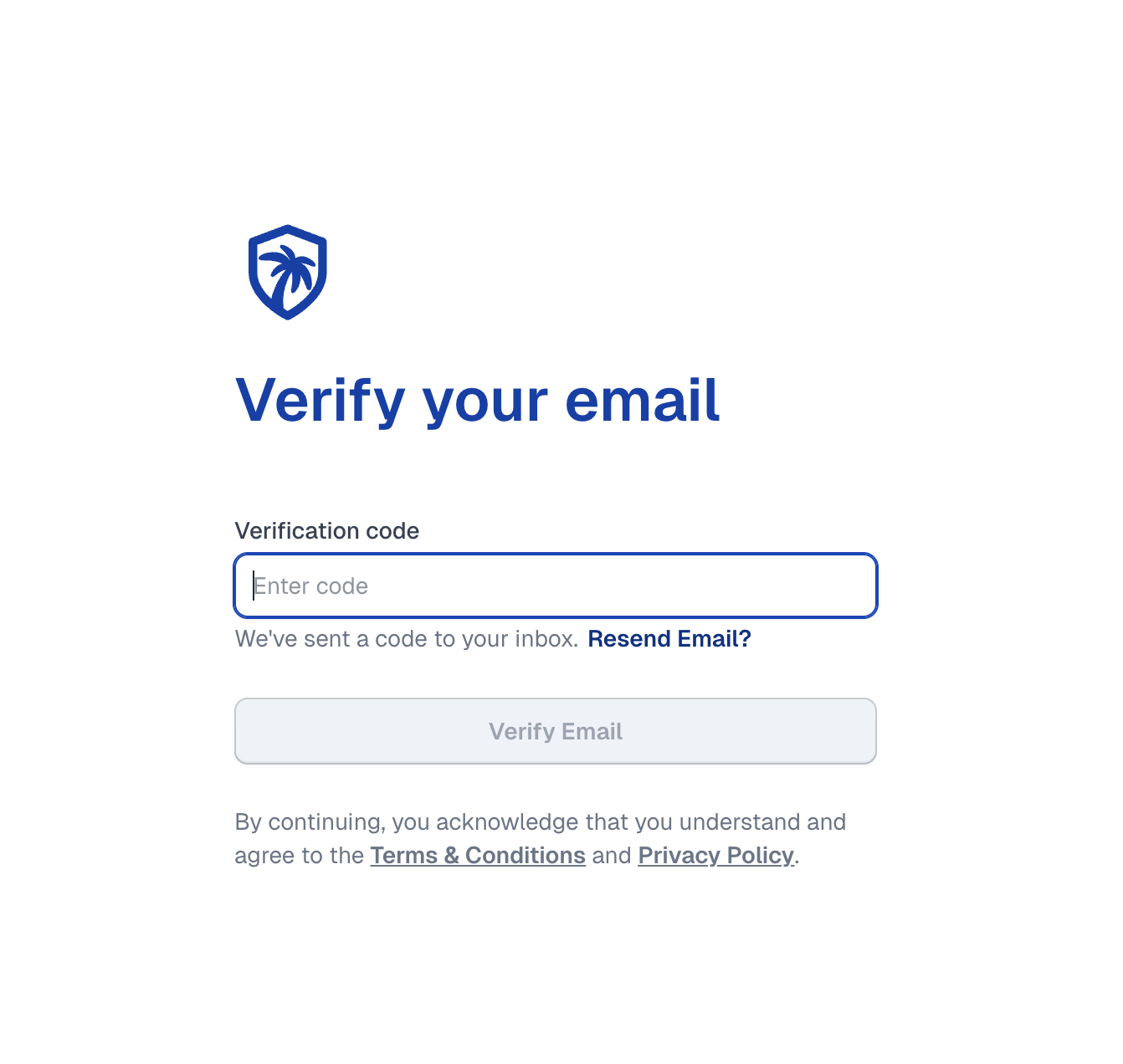
Verify your email
After signing up, you’ll be prompted to verify your email address. This confirms ownership of the email you provided.
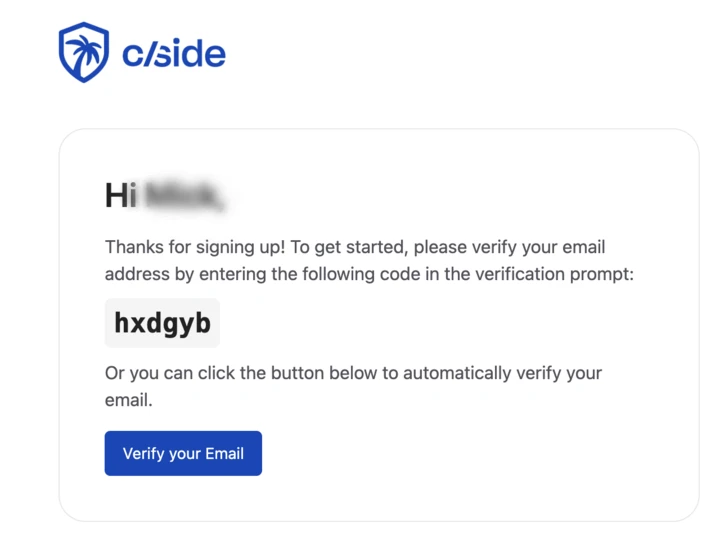
- Enter the 6-character code (letters and numbers) sent to your inbox
- The code expires in 6 hours. Click “Resend Email” if needed
- Alternatively, click the “Verify your Email” button in the email to verify directly
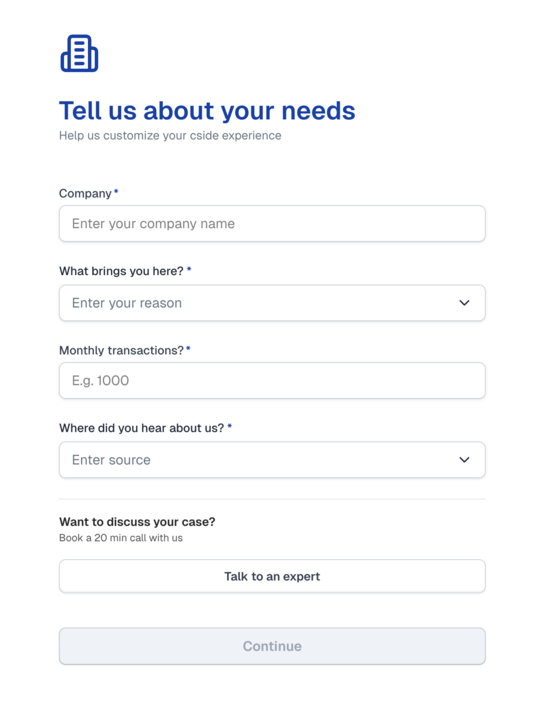
Tell us about you
Provide some basic information about your use case. This helps cside determine whether a self-service plan fits your needs or if you should connect with an expert.
Select your plan
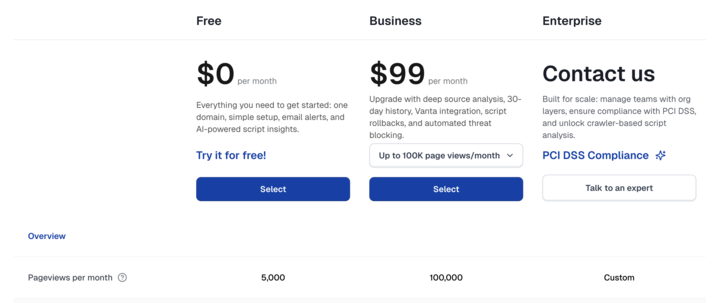
Choose the plan that best fits your needs:
| Plan | Price | Includes |
|---|---|---|
| Free | $0/mo | Email alerts, AI-powered script insights, up to 2,000 page views/mo |
| Business | From $99/mo | Deep source analysis, 30-day history, Vanta integration, automated threat blocking, up to 100,000 page views/mo |
| Enterprise | Custom | Custom page views, SSO integrations, dedicated support |
Application review
Depending on your selected plan:
- Free plans: Require a brief application review before access is granted
- Business plans: Add payment details and start using cside immediately
- Enterprise plans: Our sales team will contact you to discuss a tailored solution
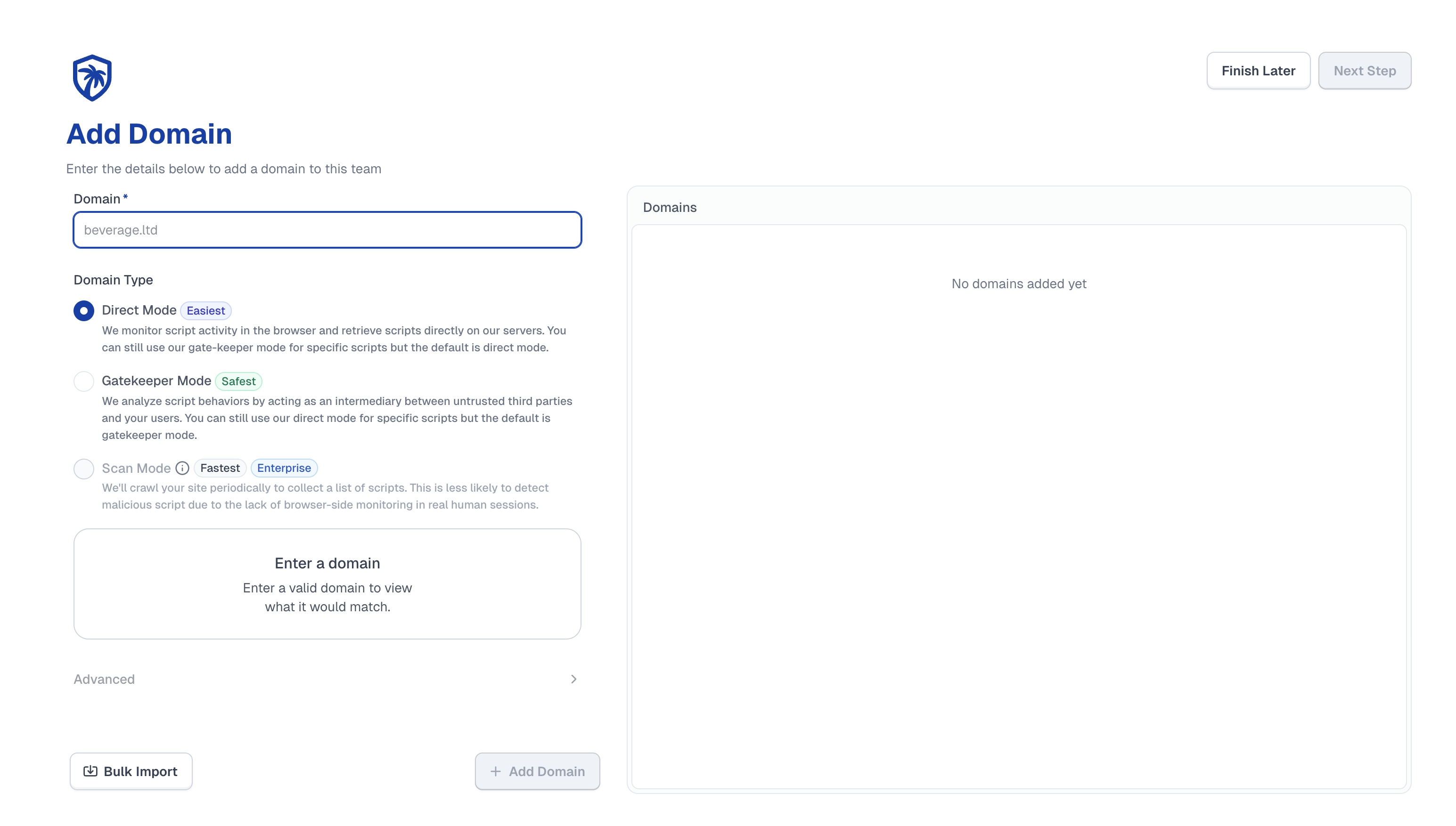
Add your domain (optional)
You can add your first domain during onboarding or skip this step and do it later.
Domain configuration:
- Enter your domain (e.g.,
example.com) - Domains are wildcarded by default. If you want to onboard specific subdomains, you can add them on the next step
- The domain preview will show which domains and subdomains will be matched
Protection methods:
cside offers two different methods to protect your site. Choose based on your security requirements and implementation constraints.
Script Method (badged Best)
cside runs a lightweight behavioral detection engine directly in the user’s browser and fetches the same scripts server-side for verification.
How it works:
- No traffic rerouting
- No latency added to your site
- Just one script tag added to your site
Best for: Teams that want immediate monitoring and integrity checks without altering their delivery path.
Scan Method (badged Fastest and Enterprise)
If you cannot add the cside script to your site, Scan Method provides crawler-based analysis as a fallback.
How it works:
- We’ll crawl your site periodically to collect a list of scripts
- This is less likely to detect malicious script due to the lack of browser-side monitoring in real human sessions
- No code changes required on your end
- Available on Enterprise plans
Best for: Teams that need protection before code changes are possible. Note that Scan Method is not a replacement for real-user monitoring, but it provides meaningful protection as an interim solution.
CSP configuration check
This step and the next only appear if you added a domain in the previous step. cside checks whether the domains you just added serve a Content Security Policy, in HTTP headers or a <meta> tag, and whether that policy lets the cside script load and report.
- No CSP found: nothing to do. The script works without changes. Click Continue setup
- Setup verified successfully: your CSP already allows cside. Click Continue setup
- Domains that need updating: the page lists each domain and whether the policy came from headers or a meta tag, and gives you the directive and meta tag to copy. Update your CSP, then click Retry Check
If someone else manages your CSP, click Send to engineer to email them the instructions for the domains that need updating. After sending, you can invite that engineer to the team from the same flow. Skip for now moves on without a passing check; the dashboard warns that skipping can affect your service.
See Adjusting your CSP for the directives cside needs.
Add the script to your site
The last setup step shows the install instructions for your team, with your team ID already filled in. Pick the tab that matches your stack (HTML, GTM, AI, NextJS, Vite, or CLI), follow it, deploy, and visit your site. The script monitors third-party scripts as soon as it loads. Click Finish Setup when you are done.
As on the CSP step, Send to engineer emails the installation instructions to a developer, and Skip for now lets you finish onboarding and add the script later.
The same instructions, with more detail, are in Adding the cside script.
Onboarding complete
Your cside account is ready. From here you can:
- Connect on Slack for direct support via a private channel
- Invite team members to collaborate on your domains
- Add the cside script to enable continuous monitoring
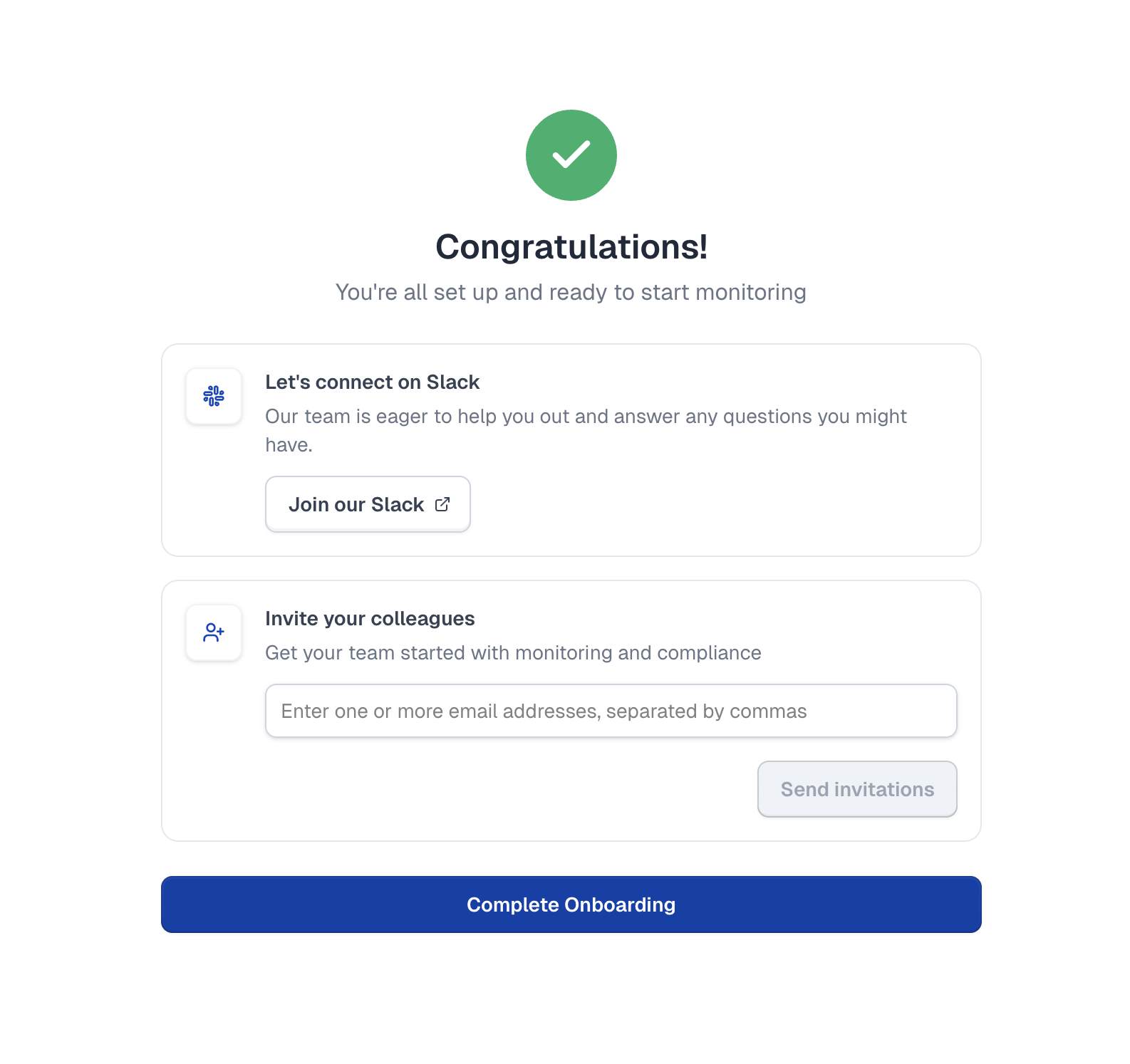
cside automatically runs an initial scan of your website. For continuous monitoring, make sure to add the cside script to your site.
Next steps
- Add your domain: Configure domains for monitoring
- Add the cside script: Enable real-time client-side protection
- Adjusting your CSP: Configure Content Security Policy for your site
Thanks for your feedback!